CLIMADA Development#
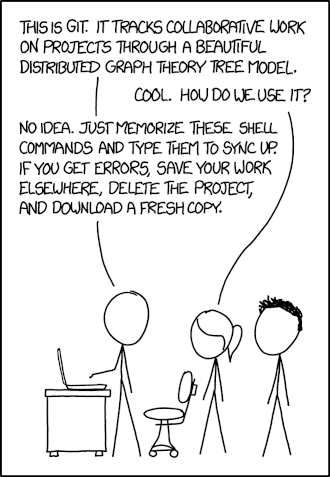
This is a guide about how to contribute to the development of CLIMADA. We first explain some general guidelines about when and how one can contribute to CLIMADA, and then describe the steps in detail. We assume that you are familiar with Git, Github and their commands. If you are not familiar with these, you can refer to our instructions for Development with Git.
Is CLIMADA the right place for your contribution?#
When developing for CLIMADA, it is important to distinguish between core content and particular applications. Core content is meant to be included into the climada_python repository and will be subject to a code review. Any new addition should first be discussed with one of the repository admins. The purpose of this discussion is to see
How does the planned module fit into CLIMADA?
What is an optimal architecture for the new module?
What parts might already exist in other parts of the code?
Applications made with CLIMADA, such as an ECA study can be stored in the paper repository once they have been published. For other types of work, consider making a separate repository that imports CLIMADA as an external package.
Planning a new feature#
Here we’re talking about large features such as new modules, new data sources, or big methodological changes. Any extension to CLIMADA that might affect other developers’ work, modify the CLIMADA core, or need a big code review.
Smaller feature branches don’t need such formalities. Use your judgment, and if in doubt, let people know.
Talk to the group#
Before starting coding a module, do not forget to coordinate with one of the repo admins (Emanuel, Chahan or Lukas)
This is the chance to work out the Big Picture stuff that is better when it’s planned with the group - possible intersections with other projects, possible conflicts, changes to the CLIMADA core, additional dependencies
Also talk with others from the core development team (see the GitHub wiki).
Bring it to a developers meeting - people may be able to help/advise and are always interested in hearing about new projects. You can also find reviewers!
Also, keep talking! Your plans will change :)
Formulate the feature’s data flow and workflow#
To optimize implementation and usefulness of the new feature, first conceptualize its data flow and workflow. It makes sense to discuss these with a CLIMADA core developer before starting to work on the feature’s implementation.
Data flow: Outline of how data moves through the system — where it is created or input, how it is processed, and if and where it is stored. This helps to improve the computational efficiency and to identify potential bottlenecks.
Workflow: Plan about where and how the user and other CLIMADA components can interact with the new feature. This ensures that the new feature couples seamlessly to the existing code base of CLIMADA and that the new feaute is easily and clearly accessible to users.
Planning the work#
Does the project go in its own repository and import CLIMADA, or does it extend the main CLIMADA repository. The way this is done is slowly changing, so definitely discuss it with the group.
Find a few people who will help to review your code.
Ask in a developers’ meeting, on Slack (for WCR developers) or message people on the development team (see the GitHub wiki).
Let them know roughly how much code will be in the reviews, and when you’ll be creating pull requests.
How can the work split into manageable chunks?
A series of smaller pull requests is far more manageable than one big one (and takes off some of the pre-release pressure)
Reviewing and spotting issues/improvements/generalisations early is always a good thing.
It encourages modularisation of the code: smaller self-contained updates, with documentation and tests.
Will there be any changes to the CLIMADA core? These should be planned carefully
Will you need any new dependencies? Are you sure?
Installing CLIMADA for development#
To develop (or review a pull request), you need to setup a proper climada development environment. This is relatively easy but requires rigor, so please read all the instructions below and make sure to follow them (we also recommend to read everything once first, and then follow them from the start).
First, follow the Advanced instructions. Note that if you want to work on a specific branch instead of develop, if you work on a feature for instance), you need to checkout that specific branc instead of develop after cloning:
git clone https://github.com/CLIMADA-project/climada_python.git
cd climada_python
git checkout <other branch>
Note on dependencies#
Climada dependencies are handled with the requirements/env_climada.yml file.
When you run mamba env update -n <your_env> -f requirements/env_climada.yml, the content of that file is used to install the dependencies, thus, if you are working on a branch that changes the dependencies, make sure to be on that branch before running the command.
Working on feature branches#
When developing a big new feature, consider creating a feature branch and merging smaller branches into that feature branch with pull requests, keeping the whole process separate from develop until it’s completed. This makes step-by-step code review nice and easy, and makes the final merge more easily tracked in the history.
e.g. developing the big feature/meteorite module you might write feature/meteorite-hazard and merge it in, then feature/meteorite-impact, then feature/meteorite-stochastic-events etc… before finally merging feature/meteorite into develop. Each of these could be a reviewable pull request.
Make a new branch#
For new features in Git flow:
git flow feature start feature_name
Which is equivalent to (in vanilla git):
git checkout -b feature/feature_name
Or work on an existing branch:
git checkout -b branch_name
get the latest data from the remote repository and update your branch
git pull
Once you have set up everything (including pre-commit hooks) you will be able to:
see your locally modified files
git status
add changes you want to include in the commit
git add climada/modified_file.py climada/test/test_modified_file.py
commit the changes
git commit -m "new functionality of .. implemented"
Pre-Commit Hooks#
Climada developer dependencies include pre-commit hooks to help ensure code linting and formatting. See Code Formatting for our conventions regarding formatting. These hooks will run on all staged files and verify:
the absence of trailing whitespace
that files end in a newline and only a newline
the correct sorting of imports using
isortthe correct formatting of the code using
black
If you have installed the pre-commit hooks (see Install developer dependencies), they will be run each time you attempt to create a new commit, and the usual git flow can slightly change:
If any check fails, you will be warned and these hooks will apply corrections (such as formatting the code with black if it is not). As files are modified, you are required to stage them again (hooks cannot stage their modification, only you can) and commit again.
As an exemple, suppose you made an improvement to Centroids and want to commit these changes, you would run:
$ git status
On branch feature/<new_feature>
Your branch is up-to-date with 'origin/<new_feature>'.

Changes to be committed:
  (use "git restore --staged <file>..." to unstage)
	modified:   climada/hazard/centroids/centr.py
Now trying to commit, and assuming that imports are not correctly sorted, and some of the code is not correctly formatted:
$ git commit -m "Add <new_feature> to centroids"
Fix End of Files.........................................................Passed
Trim Trailing Whitespace.................................................Passed
isort....................................................................Failed
- hook id: isort
- files were modified by this hook

Fixing [...]/climada_python/climada/hazard/centroids/centr.py

black-jupyter............................................................Failed
- hook id: black-jupyter
- files were modified by this hook

reformatted climada/hazard/centroids/centr.py

All done! ✨ 🍰 ✨
Note the commit was aborted, and the problems were fixed.
However, these changes added by the hooks are not staged yet.
You have to run git add again to stage them:
$ git status
On branch feature/<new_feature>
Your branch is up-to-date with 'origin/<new_feature>'.

Changes to be committed:
  (use "git restore --staged <file>..." to unstage)
	modified:   climada/hazard/centroids/centr.py

Changes not staged for commit:
  (use "git add <file>..." to update what will be committed)
  (use "git restore <file>..." to discard changes in working directory)
	modified:   climada/hazard/centroids/centr.py

$ git add climada/hazard/centroids/centr.py
After that, you can execute the commit and the hooks should pass:
$ git commit -m "Add <new_feature> to centroids"
Fix End of Files.........................................................Passed
Trim Trailing Whitespace.................................................Passed
isort....................................................................Passed
black-jupyter............................................................Passed

All done! ✨ 🍰 ✨
Make unit and integration tests on your code, preferably during development#
Writing new code requires writing new tests: Please read our Guide on unit and integration tests
Pull requests#
We want every line of code that goes into the CLIMADA repository to be reviewed!
Code review:
catches bugs (there are always bugs)
lets you draw on the experience of the rest of the team
makes sure that more than one person knows how your code works
helps to unify and standardise CLIMADA’s code, so new users find it easier to read and navigate
creates an archived description and discussion of the changes you’ve made
When to make a pull request#
When you’ve finished writing a big new class or method (and its tests)
When you’ve fixed a bug or made an improvement you want to merge
When you want to merge a change of code into
developormainWhen you want to discuss a bit of code you’ve been working on - pull requests aren’t only for merging branches
Not all pull requests have to be into develop - you can make a pull request into any active branch that suits you.
Pull requests need to be made latest two weeks before a release, see releases.
Step by step pull request!#
Let’s suppose you’ve developed a cool new module on the feature/meteorite branch and you’re ready to merge it into develop.
Checklist before you start#
Documentation
Tests
Tutorial (if a complete new feature)
Updated dependencies (if need be)
Added your name to the AUTHORS file
Added an entry to the
CHANGELOG.mdfile. See https://keepachangelog.com for information on how this shoud look like.(Advanced, optional) interactively rebase/squash recent commits that aren’t yet on GitHub.
Steps#
Make sure the
developbranch is up to date on your own machinegit checkout develop git pull
Merge
developinto your feature branch and resolve any conflictsgit checkout feature/meteorite git merge develop
In the case of more complex conflicts, you may want to speak with others who worked on the same code. Your IDE should have a tool for conflict resolution.
Check all the tests pass locally
make unit_test make integ_test
Perform a static code analysis using pylint with CLIMADA’s configuration
.pylintrc(in the climada root directory). Jenkins executes it after every push.
To do it locally, your IDE probably provides a tool, or you can runmake lintand see the output inpylint.log.Push to GitHub. If you’re pushing this branch for the first time, use
git push -u origin feature/meteorite
and if you’re updating a branch that’s already on GitHub:
git push
Check all the tests pass on the WCR Jenkins server (https://ied-wcr-jenkins.ethz.ch). See Emanuel’s presentation for how to do this! You should regularly be pushing your code and checking this!
Create the pull request!
On the CLIMADA GitHub page, navigate to your feature branch (there’s a drop-down menu above the file structure, pointing by default to
main).Above the file structure is a branch summary and an icon to the right labelled “Pull request”.
Choose which branch you want to merge with. This will usually be
develop, but may be another feature branch for more complex feature development.Give your pull request an informative title (like a commit message).
Write a description of the pull request. This can usually be adapted from your branch’s commit messages (you wrote informative commit messages, didn’t you?), and should give a high-level summary of the changes, specific points you want the reviewers’ input on, and explanations for decisions you’ve made. The code documentation (and any references) should cover the more detailed stuff.
Assign reviewers in the page’s right hand sidebar. Tag anyone who might be interested in reading the code. You should already have found one or two people who are happy to read the whole request and sign it off (they could also be added to ‘Assignees’).
Create the pull request.
Contact the reviewers to let them know the request is live. GitHub’s settings mean that they may not be alerted automatically. Maybe also let people know on the WCR Slack!
Talk with your reviewers
Use the comment/chat functionality within GitHub’s pull requests - it’s useful to have an archive of discussions and the decisions made.
Take comments and suggestions on board, but you don’t need to agree with everything and you don’t need to implement everything.
If you feel someone is asking for too many changes, prioritise, especially if you don’t have time for complex rewrites.
If the suggested changes and or features don’t block functionality and you don’t have time to fix them, they can be moved to Issues.
Chase people up if they’re slow. People are slow.
Once you implement the requested changes, respond to the comments with the corresponding commit implementing each requested change.
If the review takes a while, remember to merge
developback into the feature branch every now and again (and check the tests are still passing on Jenkins).
Anything pushed to the branch is added to the pull request.Once everyone reviewing has said they’re satisfied with the code you can merge the pull request using the GitHub interface.
Delete the branch once it’s merged, there’s no reason to keep it. (Also try not to re-use that branch name later.)Update the
developbranch on your local machine.
Also see the Reviewer Guide and Reviewer Checklist!
General tips and tricks#
Follow the python do’s and don’t and performance guides. Write small readable methods, classes and functions.
Ask for help with Git#
Git isn’t intuitive, and rewinding or resetting is always work. If you’re not certain what you’re doing, or if you think you’ve messed up, send someone a message. See also our instructions for Development with Git.
Don’t push or commit to develop or main#
Almost all new additions to CLIMADA should be merged into the
developbranch with a pull request.You won’t merge into the
mainbranch, except for emergency hotfixes (which should be communicated to the team).You won’t merge into the
developbranch without a pull request, except for small documentation updates and typos.The above points mean you should never need to push the
mainordevelopbranches.
So if you find yourself on the main or develop branches typing git merge ... or git push stop and think again - you should probably be making a pull request.
This can be difficult to undo, so contact someone on the team if you’re unsure!
Commit more often than you think, and use informative commit messages#
Committing often makes mistakes less scary to undo
git reset --hard HEAD
Detailed commit messages make writing pull requests really easy
Yes it’s boring, but trust me, everyone (usually your future self) will love you when they’re rooting through the git history to try and understand why something was changed
Commit message syntax guidelines#
Basic syntax guidelines taken from here https://chris.beams.io/posts/git-commit/ (on 17.06.2020)
Limit the subject line to 50 characters
Capitalize the subject line
Do not end the subject line with a period
Use the imperative mood in the subject line (e.g. “Add new tests”)
Wrap the body at 72 characters (most editors will do this automatically)
Use the body to explain what and why vs. how
Separate the subject from body with a blank line (This is best done with a GUI. With the command line you have to use text editor, you cannot do it directly with the git command)
Put the name of the function/class/module/file that was edited
When fixing an issue, add the reference gh-ISSUENUMBER to the commit message e.g. “fixes gh-40.” or “Closes gh-40.” For more infos see here https://docs.github.com/en/enterprise/2.16/user/github/managing-your-work-on-github/closing-issues-using-keywords#about-issue-references.
What not to commit#
There are a lot of things that don’t belong in the Git repository:
Don’t commit data, except for config files and very small files for tests.
Don’t commit anything containing passwords or authentication credentials or tokens. (These are annoying to remove from the Git history.) Contact the team if you need to manage authorisations within the code.
Don’t commit anything that can be created by the CLIMADA code itself
If files like this are going to be present for other users as well, add them to the repository’s .gitignore.
Jupyter Notebook metadata#
Git compares file versions by text tokens. Jupyter Notebooks typically contain a lot of metadata, along with binary data like image files. Simply re-running a notebook can change this metadata, which will be reported as file changes by Git. This causes excessive Diff reports that cannot be reviewed conveniently.
To avoid committing changes of unrelated metadata, open Jupyter Notebooks in a text editor instead of your browser renderer. When committing changes, make sure that you indeed only commit things you did change, and revert any changes to metadata that are not related to your code updates.
Several code editors use plugins to render Jupyter Notebooks. Here we collect the instructions to inspect Jupyter Notebooks as plain text when using them:
VSCode: Open the Jupyter Notebook. Then open the internal command prompt (
Ctrl+Shift+PorCmd+Shift+Pon macOS) and type/select ‘View: Reopen Editor with Text Editor’
Log ideas and bugs as GitHub Issues#
If there’s a change you might want to see in the code - something that generalises, something that’s not quite right, or a cool new feature - it can be set up as a GitHub Issue. Issues are pages for conversations about changes to the codebase and for logging bugs, and act as a ‘backlog’ for the CLIMADA project.
For a bug, or a question about functionality, make a minimal working example, state which version of CLIMADA you are using, and post it with the Issue.
How not to mess up the timeline#
Git builds the repository through incremental edits. This means it’s great at keeping track of its history. But there are a few commands that edit this history, and if histories get out of sync on different copies of the repository you’re going to have a bad time.
Don’t rebase any commits that already exist remotely!
Don’t
--forceanything that exists remotely unless you know what you’re doing!Otherwise, you’re unlikely to do anything irreversible
You can do what you like with commits that only exist on your machine.
That said, doing an interactive rebase to tidy up your commit history before you push it to GitHub is a nice friendly gesture :)
Do not fast forward merges#
(This shouldn’t be relevant - all your merges into develop should be through pull requests, which doesn’t fast forward. But:)
Don’t fast forward your merges unless your branch is a single commit. Use
git merge --no-ff ...
The exceptions is when you’re merging develop into your feature branch.
Merge the remote develop branch into your feature branch every now and again#
This way you’ll find conflicts early
git checkout develop
git pull
git checkout feature/myfeature
git merge develop
Create frequent pull requests#
I said this already:
It structures your workflow
It’s easier for reviewers
If you’re going to break something for other people you all know sooner
It saves work for the rest of the team right before a release
Whenever you do something with CLIMADA, make a new local branch#
You never know when a quick experiment will become something you want to save for later.
But do not do everything in the CLIMADA repository#
If you’re running CLIMADA rather than developing it, create a new folder, initialise a new repository with
git initand store your scripts and data thereIf you’re writing an extension to CLIMADA that doesn’t change the model core, create a new folder, initialise a new repository with
git initand import CLIMADA. You can always add it to the model later if you need to.